
Cast your VR Headset to your PC.
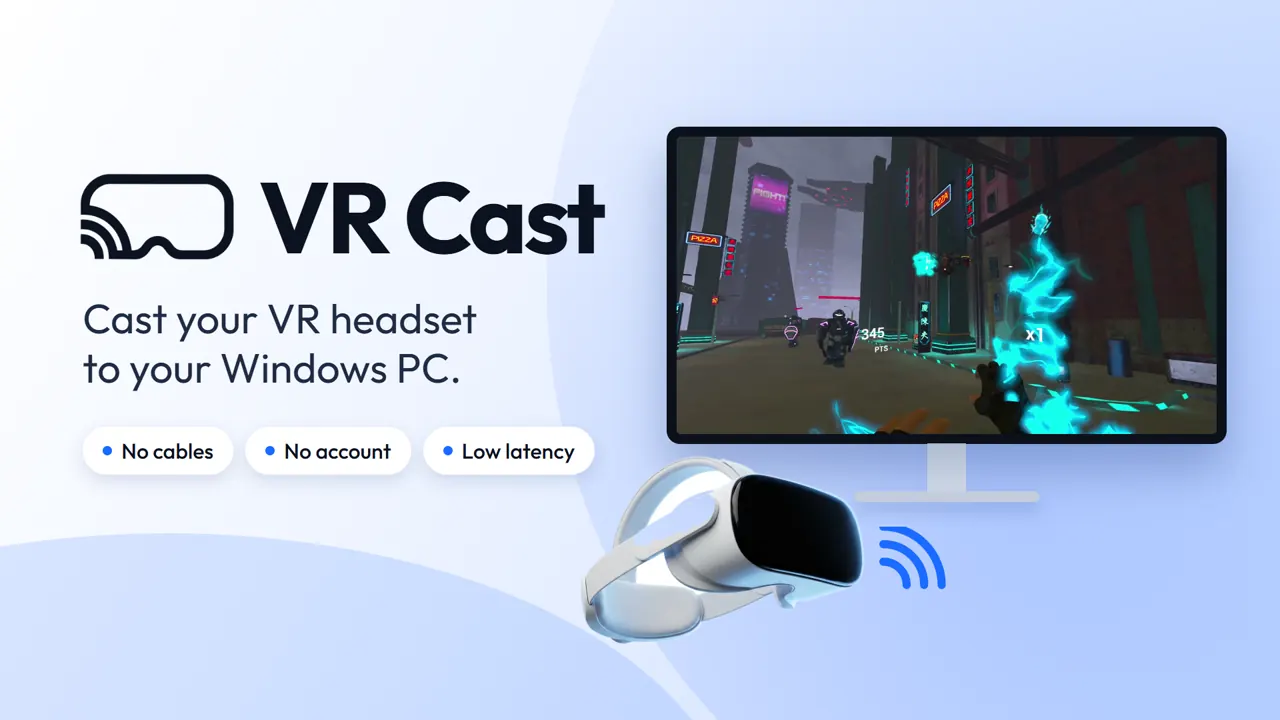
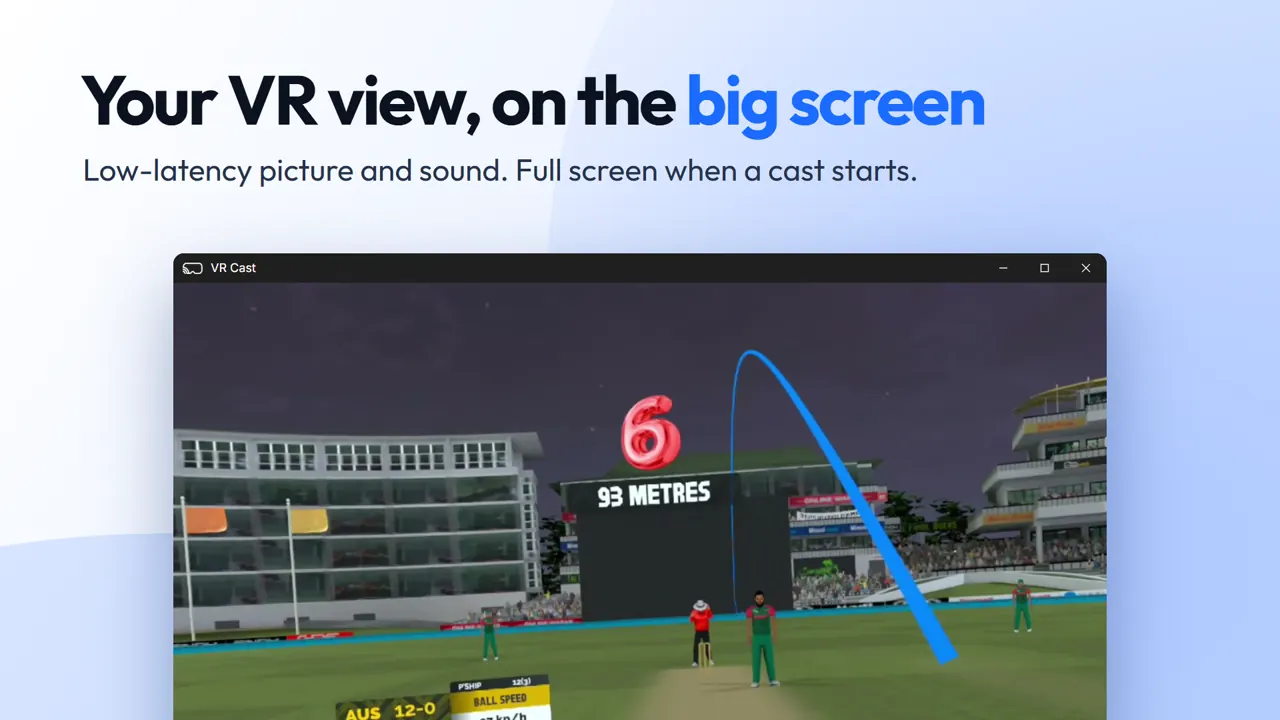
Cast your Meta Quest to your Windows PC. Share the view, with sound, over your local network.
Free 1-day trial with every feature included.
Take a closer look
Made for the moments worth sharing.
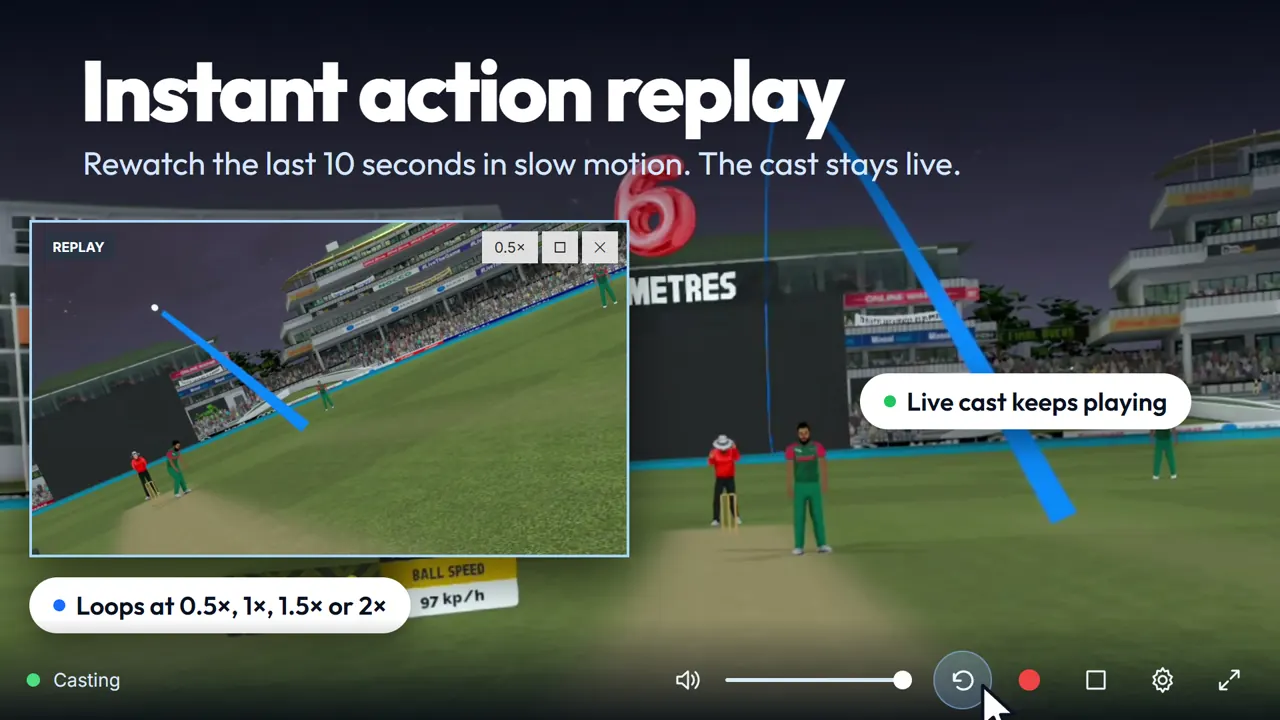
Explore how VR Cast works, from getting connected to recording and replaying the action.
Scroll to explore · Select an image to view it larger
Features
Everything you need, nothing in the way.
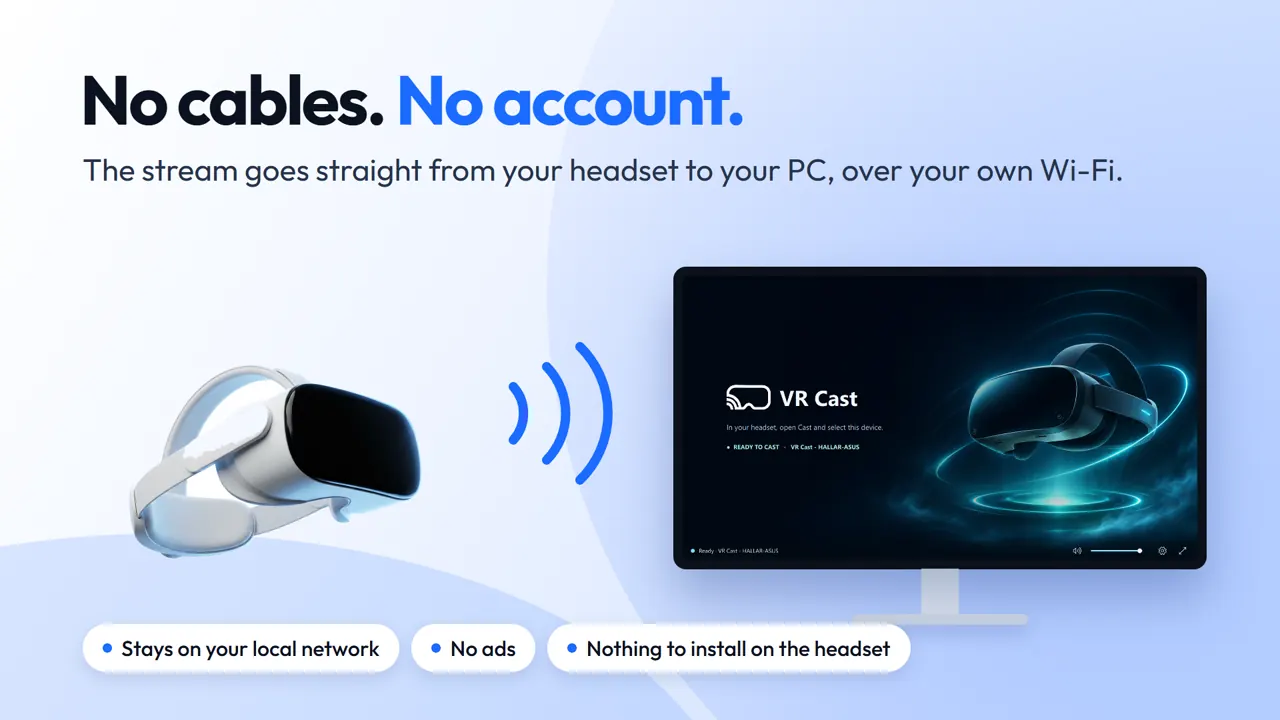
Shows up automatically
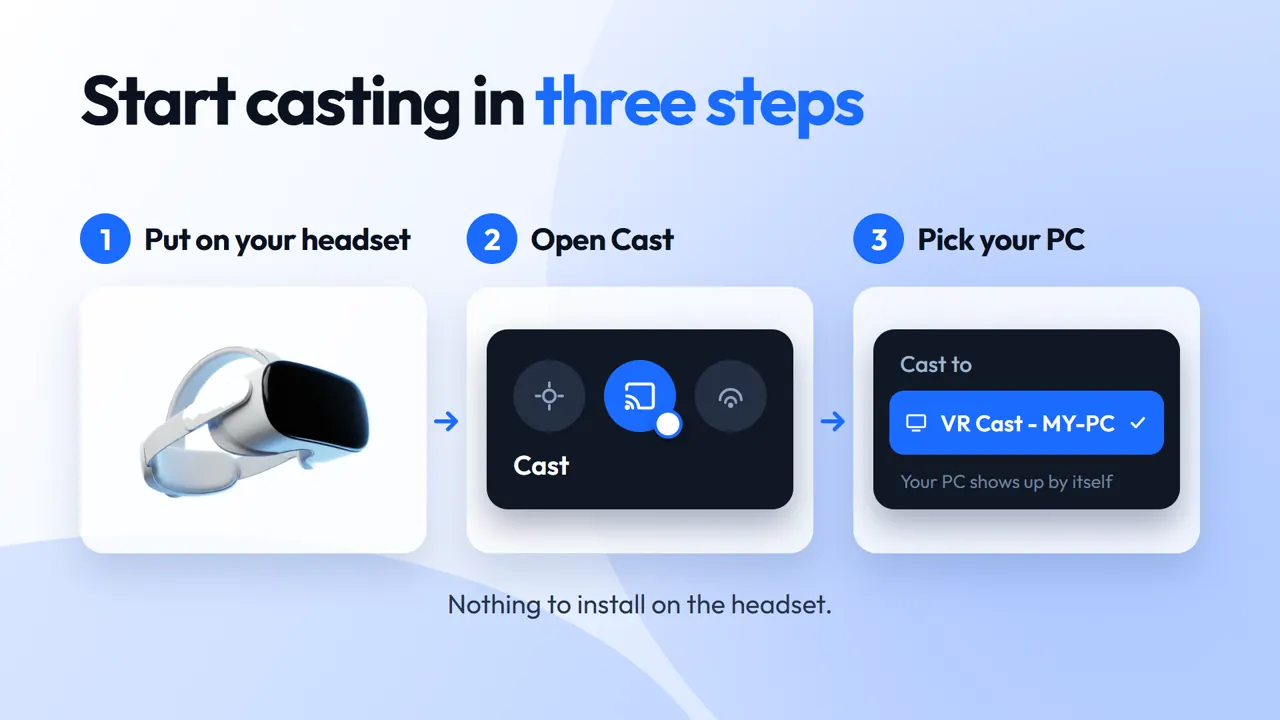
Your PC appears in the headset's Cast menu on its own. No codes, no pairing.
Video and audio, low latency
See and hear the headset view with a short delay, over your local network.
Fullscreen when you cast
Goes fullscreen as a cast starts. Double-click or press F11 to switch.
Volume and mute
Turn the cast's sound up, down or off right from VR Cast.
Your own receiver name
Name your PC so it's easy to spot in the Cast menu, like "Living Room PC".
Tray and startup
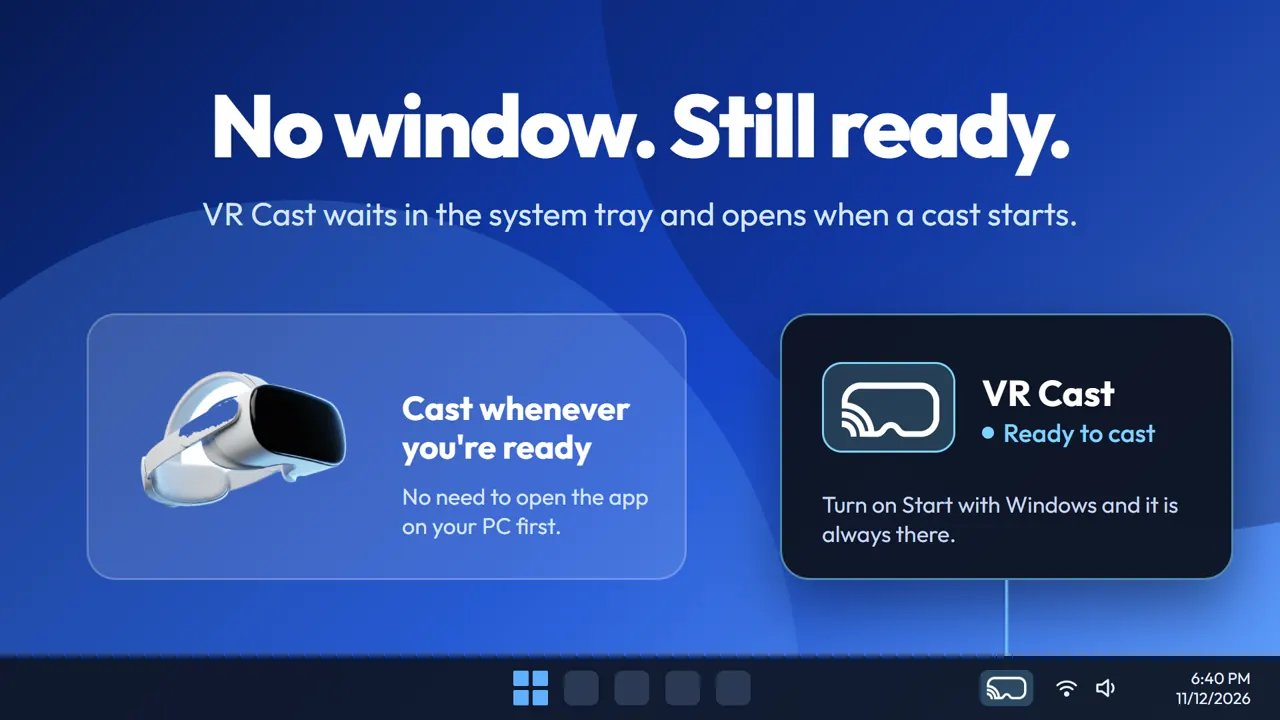
Runs in the system tray, and can start with Windows if you want it always ready.
Requirements
What you'll need
- A Windows PCWindows 10 or Windows 11.
- A Meta Quest headsetCasting uses the headset's built-in Cast menu.
- The same local networkYour headset (on Wi-Fi) and PC must be on the same local network. The PC can use Ethernet if it's connected to that same network.
FAQ
Questions, answered
Is there a free trial?
Yes. VR Cast comes with a 1-day free trial through the Microsoft Store, with every feature unlocked. Starting the trial doesn't buy the app. To keep using VR Cast after the trial, buy it from the Microsoft Store, which shows the price in your local currency.
Which headsets does it work with?
VR Cast is made for Meta Quest headsets and works with the Cast option already built into the headset. There's nothing extra to install on the headset.
My PC doesn't show up in the Cast menu. What should I check?
Make sure VR Cast is running on your PC (look for its icon in the system tray) and that your headset and PC are on the same local network. If it still doesn't appear, check that Windows treats the network as Private, that your firewall allows VR Cast, and that the router isn't isolating devices from each other (often called AP or client isolation, common on guest networks).
Do I need an account?
No. There's no sign-up and no account. Install it, open it, and cast.
Is my gameplay recorded or uploaded?
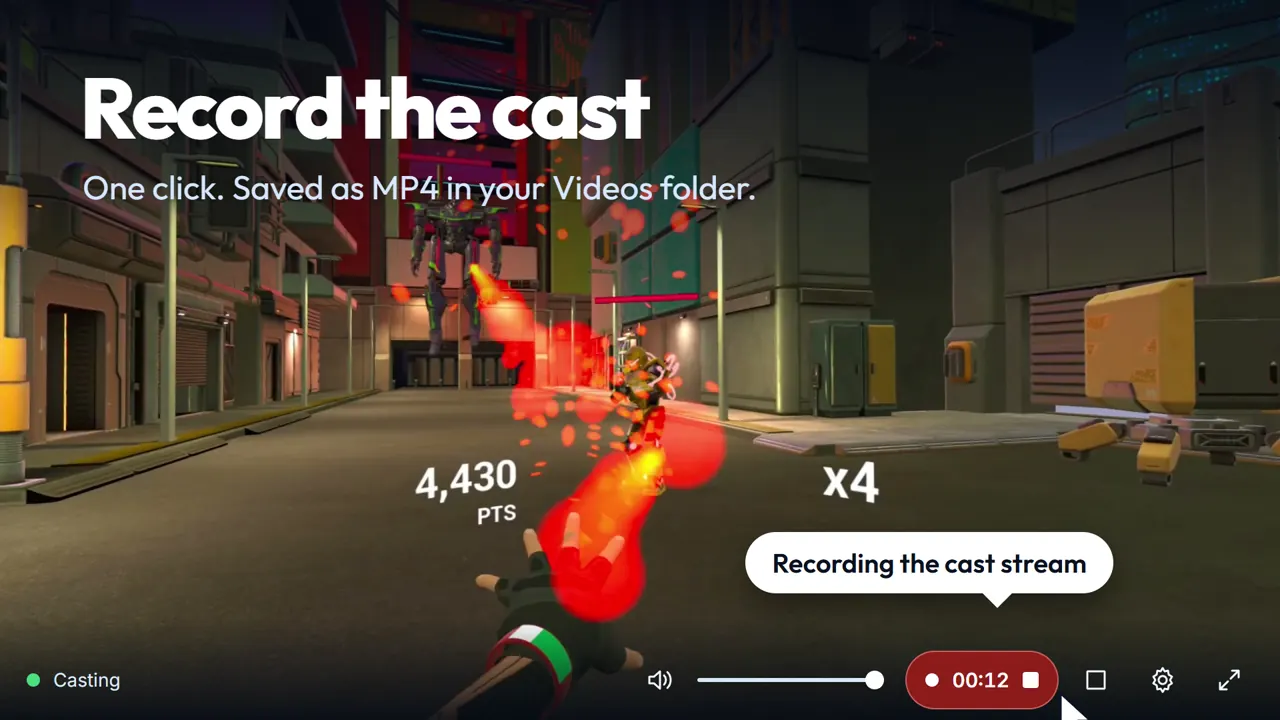
The cast travels over your local network and is not uploaded. Recording is optional; when you choose to record, the MP4 is saved on your PC. See the privacy policy for details.
Can I change how my PC appears in the headset?
Yes. Give VR Cast a custom receiver name and that's the name you'll see in the headset's Cast menu.
Still stuck, or have a question? Email hallarazad@gmail.com.
Put your headset on the big screen.
Try every feature free for a day on the Microsoft Store, then buy it there to keep it.
Coming soon to Microsoft Store